
Every AR app, VR training module and digital twin depends on 3D models. The models that come out of design and CAD tools are usually far too heavy to run smoothly on a headset, phone or web browser. Optimising them by hand is slow, specialist work, and it often becomes the bottleneck in an immersive project.
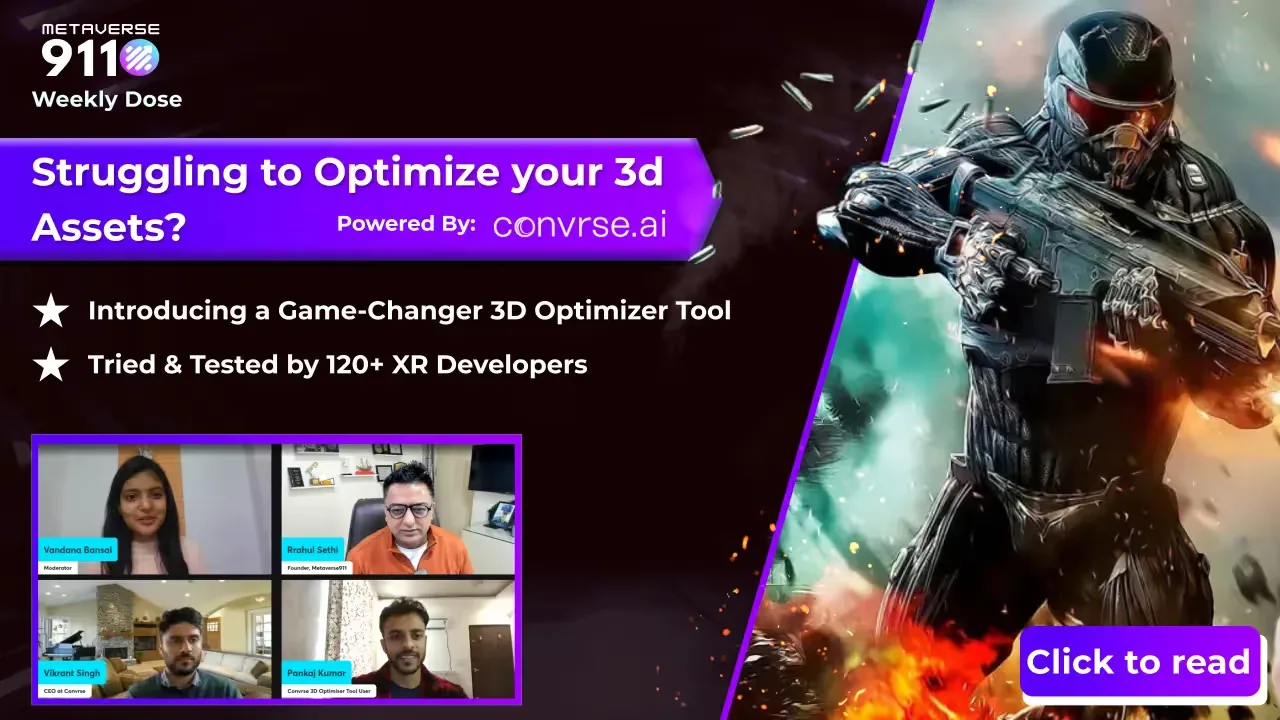
We discussed this problem in a LinkedIn Live session, "Elevate Your Tech: 3D Asset Optimization Tool for Tech Leaders", with the Convrse.ai team. This article sets out the problem, how their 3D Optimizer tool approaches it, and how a team can put it to use.
Why 3D optimisation slows projects down
Picture a junior artist who is new to Blender and has been handed a detailed 3D model. They may not know how to optimise it at all. Even an experienced artist who knows the software can spend a long time reducing and exporting a single asset while a deadline approaches.
Many immersive technology companies outsource this step instead. That brings its own problem: when an urgent change is needed, the turnaround depends on someone else's response time. For a business commissioning AR or VR content, both routes add delay and cost.
An automated optimiser that keeps visual quality
The Convrse.ai 3D Optimizer automates the job. It is designed to reduce a 3D asset by up to 80% without compromising the quality of the model, in a few clicks. Rrahul Sethi has used it to optimise assets himself and found that it removed most of the friction from the workflow.
The tool has been reviewed by more than 800 3D designers and developers from VR, AR, digital twin and gaming companies. After optimisation, uploaded 3D models are permanently deleted, so no client data is stored.
Main features
- 40+ file conversions: converts 3D files and models across more than 40 formats, which keeps work compatible across different software.
- Heat mapping and mesh analysis: an interactive heat map shows where a complex scene is heaviest, with suggestions for improving the mesh.
- 3D file management: a personal dashboard to manage optimised models and publish them.
- 3D viewer and editor: review and adjust the model in real time before export.
- Selective optimisation: optimise individual parts or groups of parts, to balance performance against visual detail.
- CAD file support: prepares CAD data for real-time 3D use, which matters for anyone starting from engineering drawings.
- Scene management: clears out old and unused projects to keep the workspace tidy.
- Batch optimisation: upload several assets or large files at once to save production time.
How to use it in a project
The workflow is short:
- Sign up and create an account on the tool.
- Drag and drop your 3D file.
- Set the parameters you need: polygon target, export format and texture optimisation.
- Click optimise. The optimised model is typically ready to download within 30–60 seconds.
For a manufacturer, the practical point is that product CAD files can be turned into light, real-time models much faster. That shortens the path to an AR product viewer, a VR machine demo or a digital twin, and makes later changes cheaper.
Next step
If you want to adopt the 3D Optimizer, or need optimised 3D models for an AR, VR or digital twin project, talk to our team and we will connect you with the right people.
First published on the Metaverse911 blog.
Frequently asked questions
Why do 3D models need optimising for AR, VR and digital twin projects?
3D models that come out of design and CAD tools are usually far too heavy to run smoothly on a headset, phone or web browser. Heavy models make AR, VR and digital twin experiences slow to load and hard to run. Optimising them by hand is slow, specialist work and often becomes the bottleneck in an immersive project.
What is the Convrse.ai 3D Optimizer?
The Convrse.ai 3D Optimizer is a tool that automates 3D asset optimisation. It is designed to reduce a 3D asset by up to 80% without compromising the quality of the model, in a few clicks. It has been reviewed by more than 800 3D designers and developers from VR, AR, digital twin and gaming companies.
How long does the Convrse.ai 3D Optimizer take to optimise a model?
With the Convrse.ai 3D Optimizer, the optimised model is typically ready to download within 30 to 60 seconds. The workflow is short: sign up and create an account, drag and drop the 3D file, set the polygon target, export format and texture optimisation, then click optimise.
What features does the Convrse.ai 3D Optimizer offer?
The Convrse.ai 3D Optimizer offers conversions across more than 40 3D file formats, heat mapping and mesh analysis, 3D file management, a 3D viewer and editor, and selective optimisation of individual parts. It also supports CAD files, scene management and batch optimisation, so several assets or large files can be uploaded at once.
Does the Convrse.ai 3D Optimizer store our 3D models or CAD data?
The Convrse.ai 3D Optimizer does not store client data. After optimisation, uploaded 3D models are permanently deleted. For manufacturers, this means product CAD files can be turned into light, real-time models for an AR product viewer, a VR machine demo or a digital twin without the original files being kept on the tool.
More from the blog
Blog · 3D contentSeven ways to make 3D asset optimisation easier for AR, VR and digital twins
Why 3D models need optimising for AR, VR and digital twins, and seven tool features that cut size and polygon count by up to 80% while keeping quality.
Read the postBlog · 3D contentHow to reduce 3D asset size by up to 80% without losing quality
How mesh decimation, texture compression and AI can cut 3D model size by up to 80% without losing visual quality, and why it matters for AR, VR and twins.
Read the post